
How to Turn Any Object into an Instance of a Master Component
With Components and Variables for Google Slides™, you can link new or existing objects to a master component so they automatically inherit its styling and stay perfectly in sync.
Step 1 – Open the sidebar
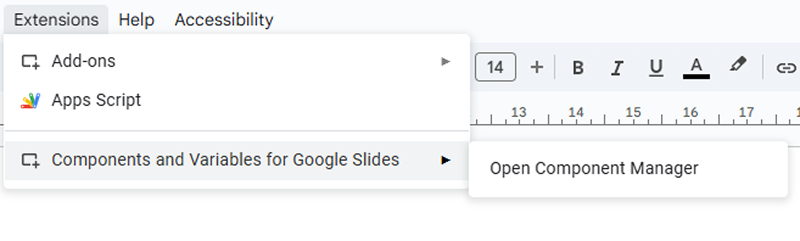
Go to Extensions → Components and Variables for Google Slides™ → Open Component Manager.
You now have two easy ways to create instances:
Option 1 – Convert a new or existing object into an instance
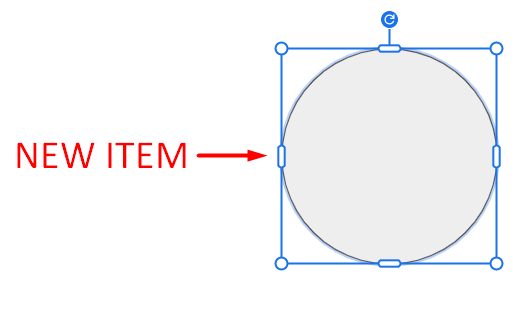
Add or select an object of the same type as your master component (e.g., a new rectangle if your master is a rectangle).
In the sidebar, find your master component in “My Components” and click Add Instance.
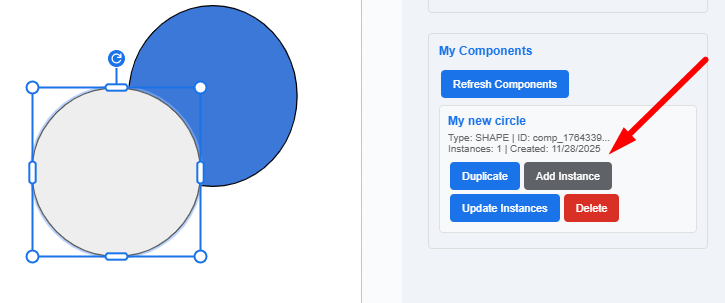
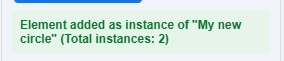
You’ll instantly see the success message and the new instance count will increase.
Option 2 – Duplicate the master component as an instance
Simply click Duplicate next to your master component in the sidebar.
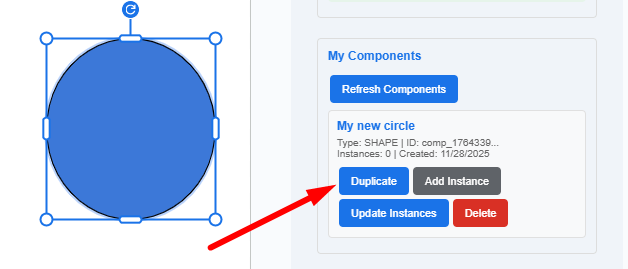
A perfect copy is placed on the current slide as a linked instance, and you’ll get the confirmation message.

That’s all! Your new instances are now fully linked! Change the master once, and every instance updates automatically. Happy designing!