How to Remove a Master Component (Without Deleting the Objects)
Removing a master component only deletes it from the component list – the original object and all its instances stay on your slides as normal, unlinked objects.
1. Open the sidebar
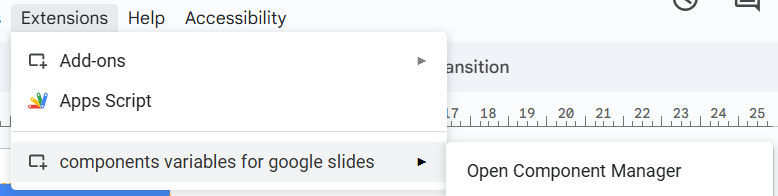
Go to Extensions → Components and Variables for Google Slides™ → Open Component Manager.
2. Delete the master component
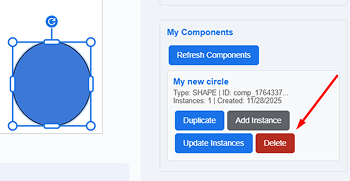
In “My Components”, click the red Delete button next to the component you no longer need.
3. Confirm the deletion
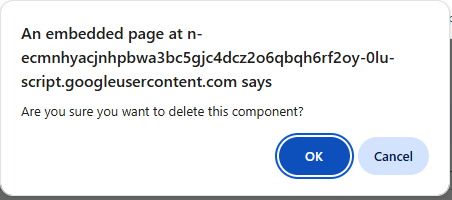
A Google confirmation dialog will appear – click OK to proceed.
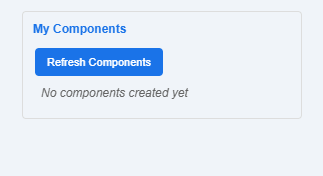
The component disappears from the list, and your slides remain unchanged.