
How to Add an Item as a Master Component in Google Slides
With Components and Variables for Google Slides™, you can turn any object (shape, text box, image, table, etc.) into a reusable master component in just a few clicks.
1. Open the sidebar
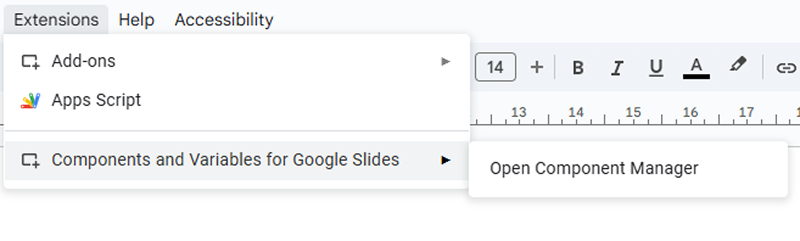
Go to Extensions → Components and Variables for Google Slides → Open Component Manager.
2. Select the object you want to use as the master
Click the object on your slide and give it a descriptive name in the input field (e.g., “Primary Button”, “Section Title”, “Logo”). This makes it easy to identify later in the component list.
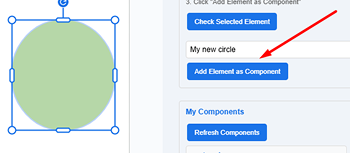
3. Create the master component
Click Add Element as Component. You’ll see the green “Component ‘NAME’ created successfully!” message.

That’s it! Your object is now a master component. Any instances you create from it will stay perfectly in sync when you update the master.
Have Fun!